
Integrating Convertigo with Microsoft Entra ID (Azure AD) via OAuth2

This guide explains how to register a new application in Microsoft Entra ID (formerly Azure Active Directory) using the Azure portal. This is particularly relevant for administrators managing single-tenant applications, such as those used by Convertigo.
🧭 Prerequisites
Before you begin, ensure you:
Have Azure AD administrator privileges
Are signed into the Azure Portal
🛠️ Step-by-Step: Registering the Application
1. Navigate to Microsoft Entra ID
In the Azure Portal, search for and select Microsoft Entra ID from the top search bar.
This opens the identity management blade for your organization.
2. Access App Registrations
In the left-hand menu, under Manage, click App registrations.
Click + New registration at the top of the blade.
3. Configure the Registration
Fill out the registration form with the following details:
Field | Value |
|---|---|
Name | Choose a descriptive name (e.g., |
Supported account types | Select Accounts in this organizational directory only (Single tenant) |
Redirect URI | https://c8ocloud.convertigo.net/convertigo/projects/lib_OAuth/getToken.html |
💡 Single tenant means the app will only be accessible within your organization’s Azure AD tenant.
Click Register to create the application.
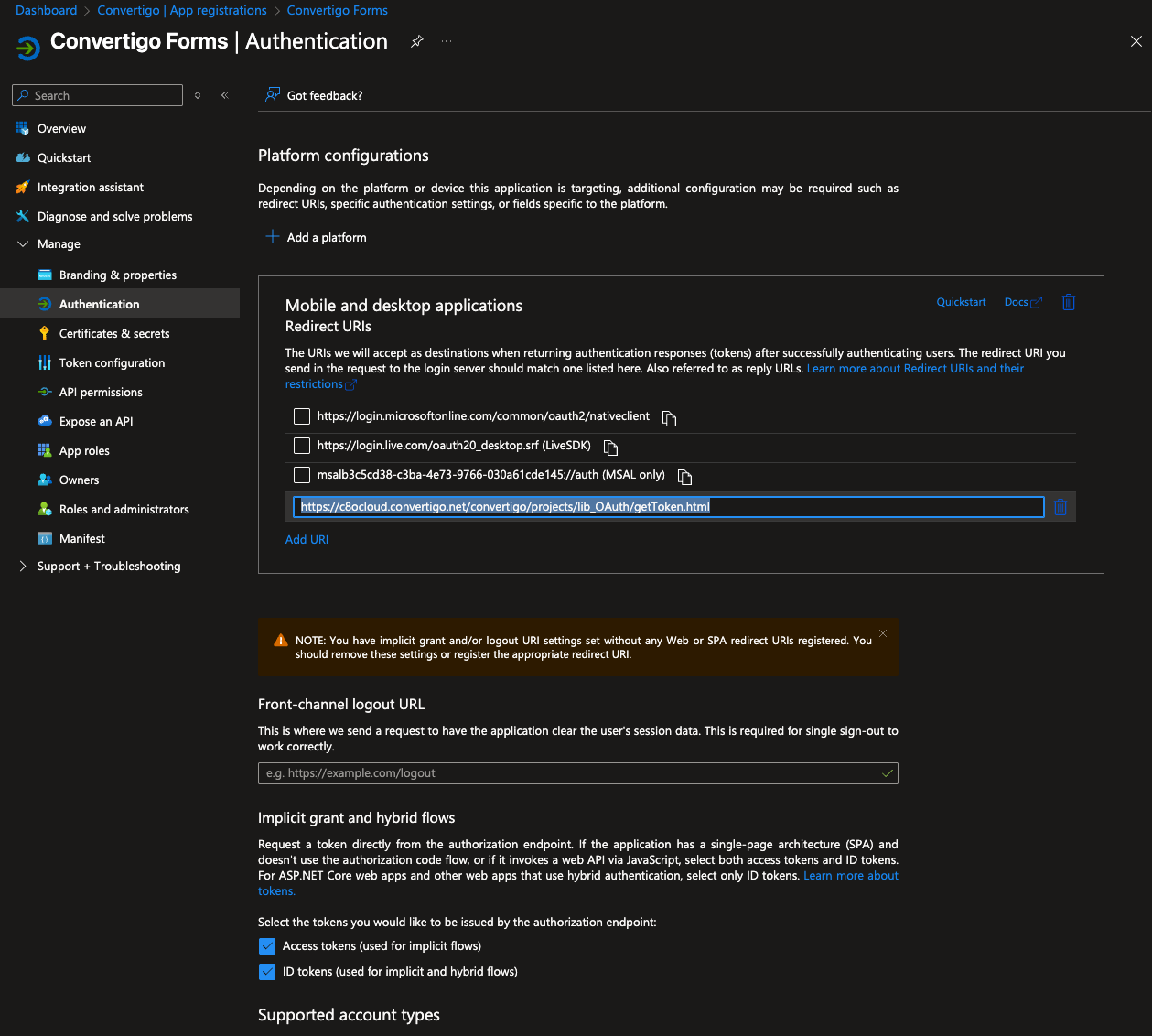
🔧 Step 4: Configure Authentication
Once the app is registered, you’ll be redirected to its Overview page.
1. Open Authentication Settings
In the left-hand menu of the app, click Authentication.
2. Add a Platform
Click + Add a platform
Select Mobile and desktop applications
3. Enable Token Permissions
Under Mobile and desktop applications, check the boxes for:
✅ Access tokens
✅ ID tokens
Click Configure to save the platform settings.
🔐 Access tokens and ID Tokens are required for the app to authenticate and access protected resources on behalf of the user.
🧩 Step 5: Add Symbols in Convertigo Administration Console
Before adding the required symbols, make sure to import the Convertigo lib_OAuth project into your Convertigo Low Code Platform, if it is not already deployed.
Then, add the following symbols in the Convertigo Administration Console:
Entra ID:
Symbol | Description |
|---|---|
| The Azure Active Directory Client ID |
| The Azure Active Directory Tenant ID |
These symbols ensure that Convertigo can properly authenticate against your Azure AD tenant.
✅ Final Notes
You can now proceed to configure API permissions, branding,
The first time a user connects it will require some Entra ID admin privileges to authorize the app. So the first user MUST be have admin privileges.